


Add a dosimeter
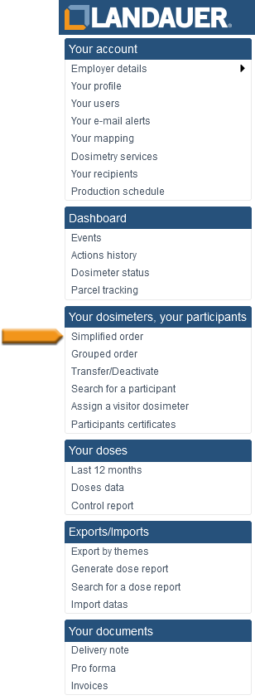
The “Simplified order” function allows you to add a dosimeter to a participant.
This feature is also available in “Your mapping” menu with the details of the participant.

- Select “Simplified order” from the menu on the left
- Click on the subdivision in which you want to add the service
- There are two possibilities:
■ the participant already exists
■ the participant needs to be created
If the participant already exists
- Click on its participant number (left column)
- Click on the “Add service” button at the bottom right of the new window
- Select the required service(s) in the “Service” column by ticking each box
- Set the date for beginning of the wear period. If the other dosimeters of the wear period are already manufactured, then “Express shipment” is indicated
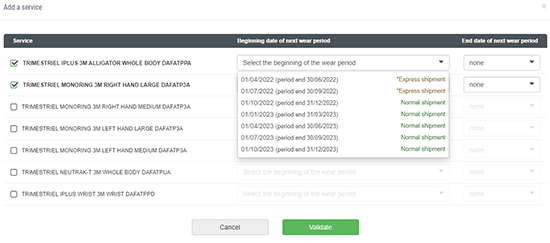
- If you know the end date for this dosimetry service, fill in the field in the “End of date of next wear period” column
- Click on “Validate” button
If the participant does not exist
-
- At the top of the list of carriers appear the following buttons:
– Transfer/Deactivate
– Add area monitoring
– Add a visitor
Click on “Add a participant“ - Enter the first letters of the participant’s name to confirm that the participant does not already exist
- Click on “Click here to add a new participant” below the list of suggestions. If the participant already exists, click on its name and proceed to step 7
- Fill in the fields (mandatory fields are indicated by an *)
- Save with the “Validate” button . The participant details appears
- Click on the “Add service” button at the bottom right of the new window
- Select the required service(s) in the “Service” column by ticking each box
- Set the date for beginning of the wear period. If the other dosimeters of the wear period are already manufactured, then “ Express shipment” is indicated
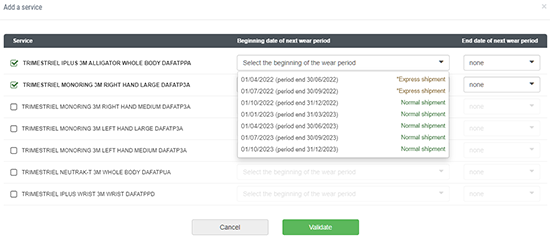
- If you know the end date for this dosimetry service, fill in the field in the “End of date of next wear period” column
- Click on “Validate” button
- At the top of the list of carriers appear the following buttons:
At any time, you can review the actions performed on your account by clicking “Action History” in the left-hand menu.